
Step 1 — Prepare & Upload Your Audio File
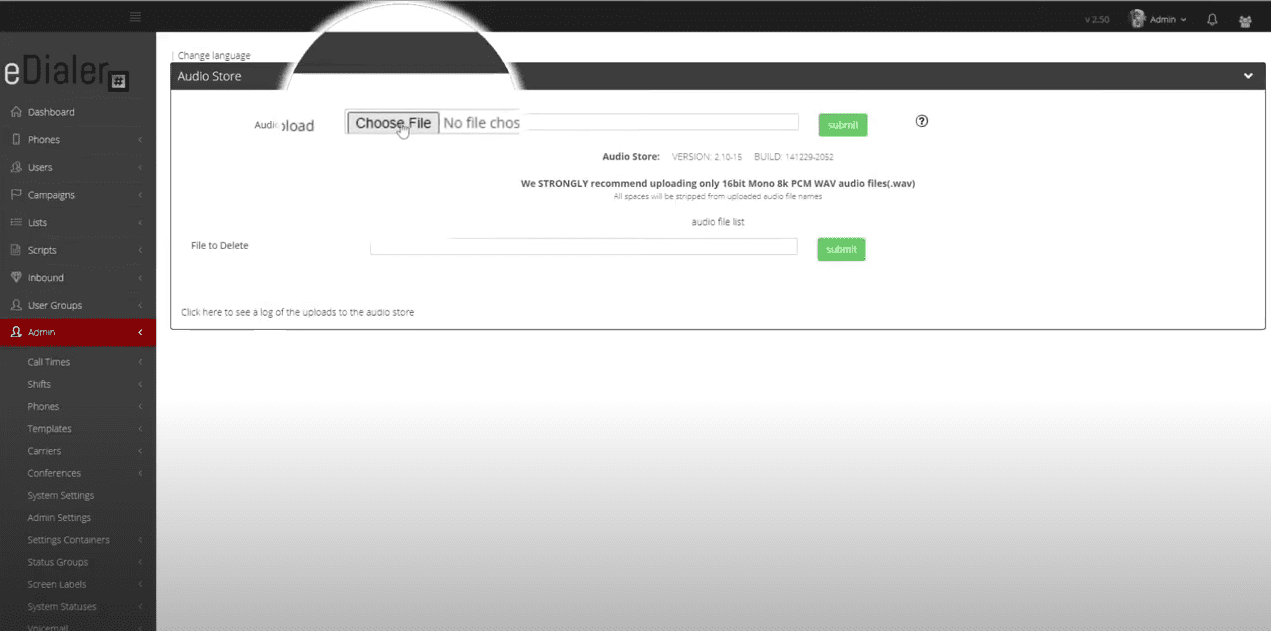
Before you can add a welcome message to an ingroup, you need to upload a compatible audio file to eDialer’s Audio Store. The only accepted file formats are:
WAV file — 16-bit, 8k, PCM mono
or
GSM 8-bit, 8k
Once your audio file is in the correct format, follow the steps below to upload it.
-
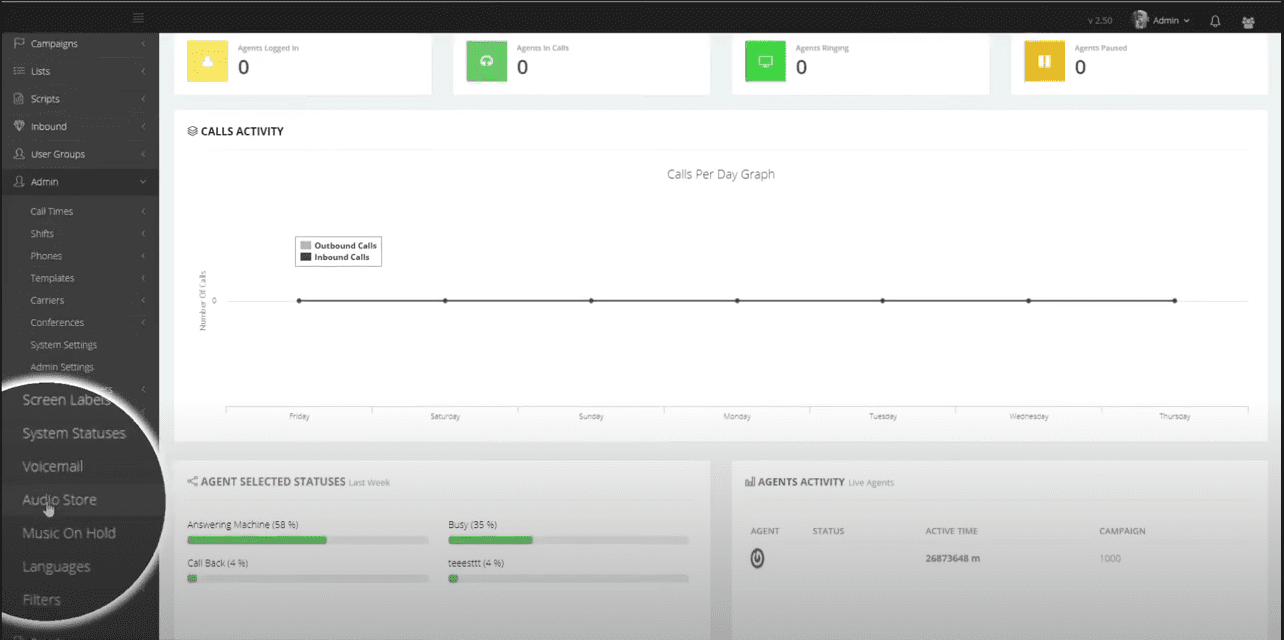
Log in to the eDialer administration dashboard, then navigate to Admin → Audio Store.
-
Click Choose File, select your audio file, then click Submit.
Step 2 — Configure the Welcome Message on Your Ingroup
Your audio file is now uploaded. Follow the steps below to assign it as the welcome message for the desired ingroup.
-
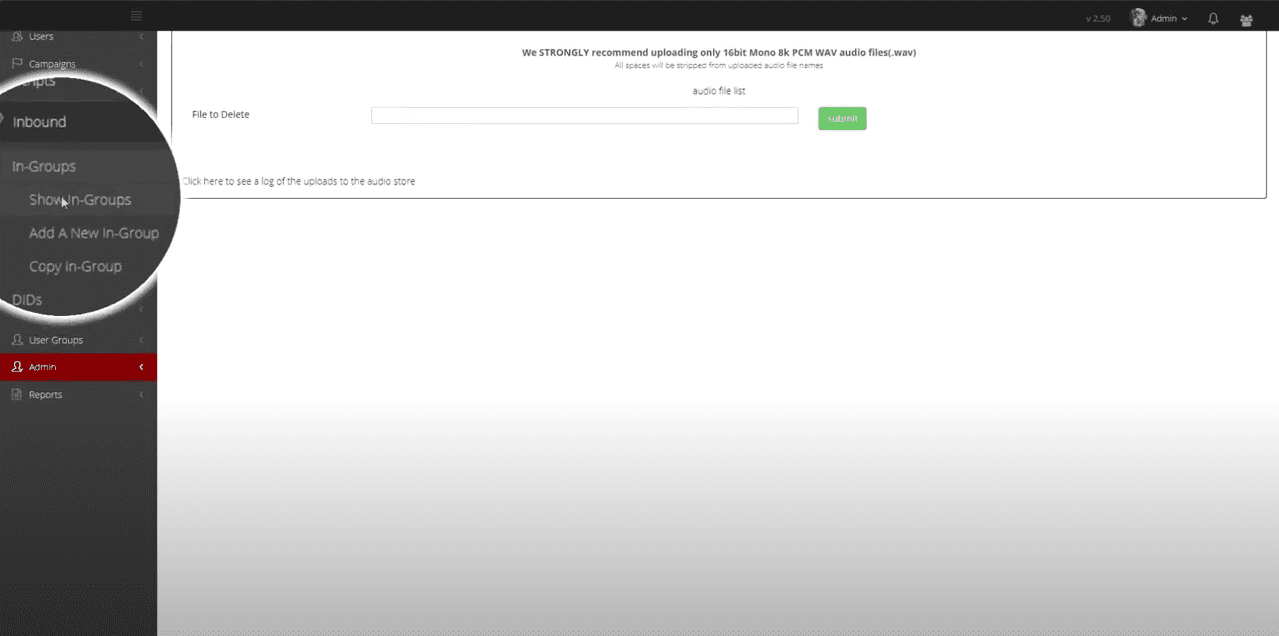
Go to Inbound → In-Groups → Show In-Groups.
-
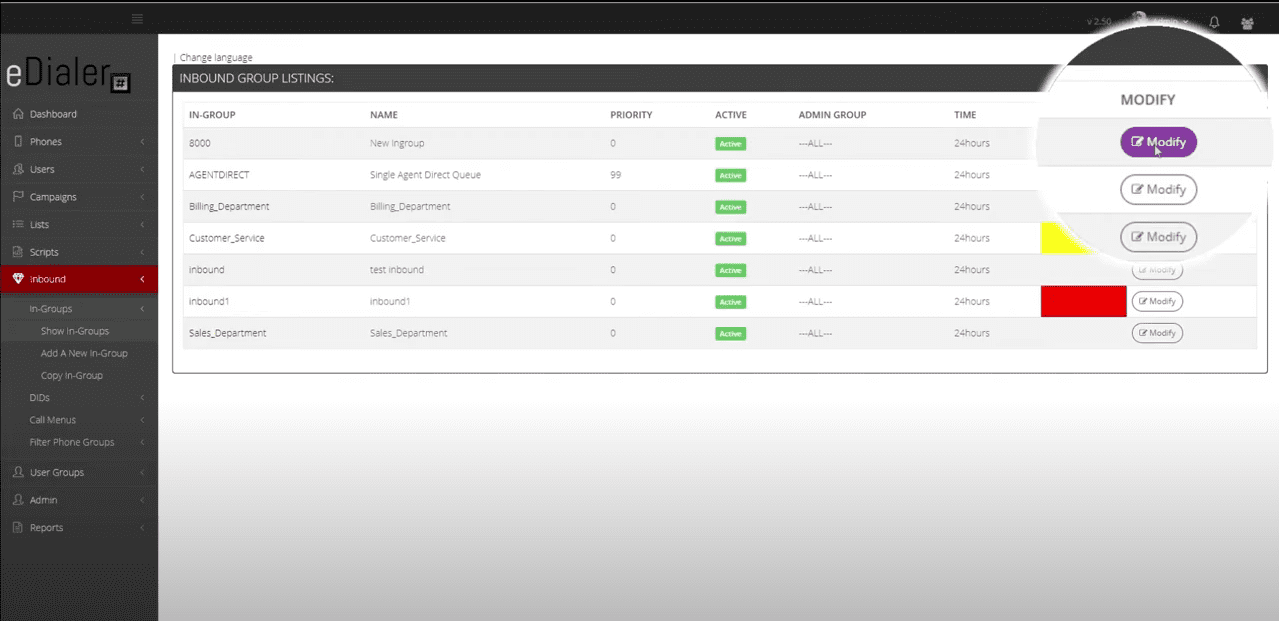
Click Modify next to the ingroup you want to add the welcome message to.
-
Scroll to the IVR & Menu Settings section and locate the Welcome Message Filename field.
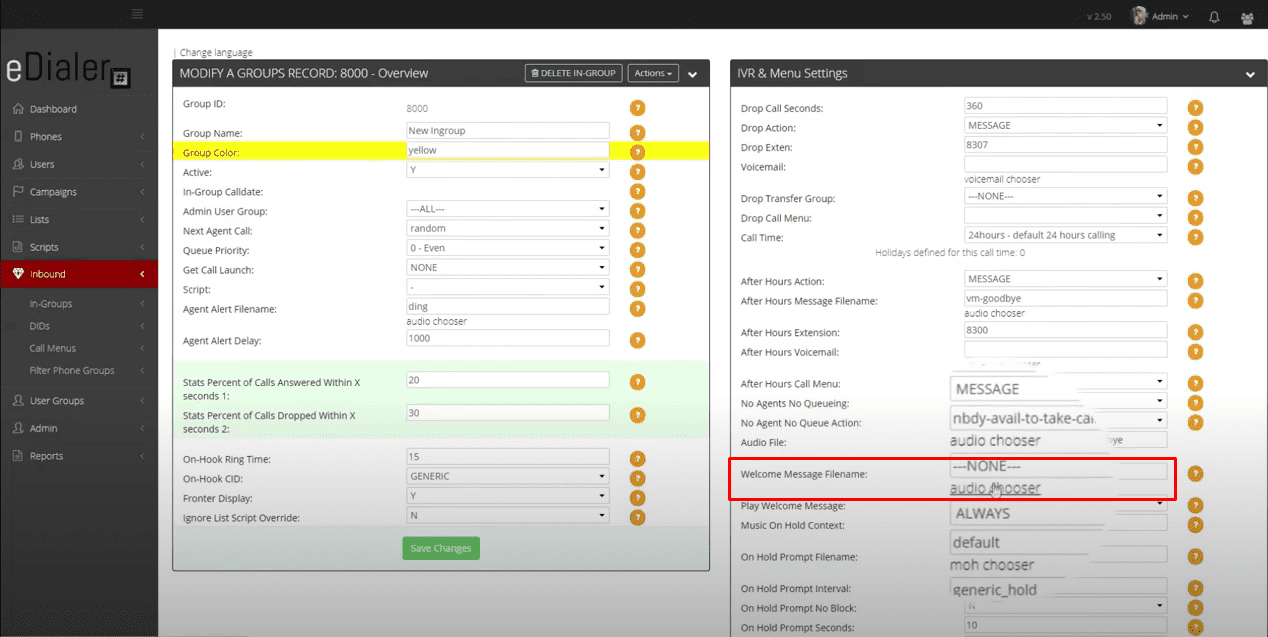
-
Click Audio Chooser and select the welcome message audio file you just uploaded.
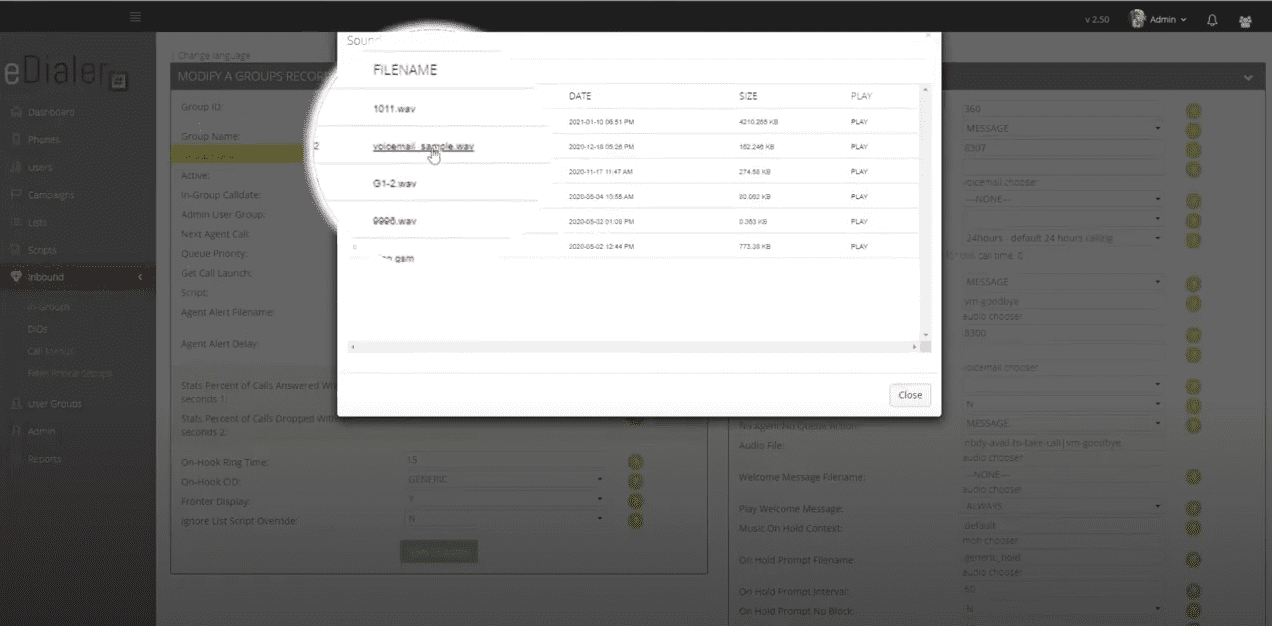
-
Under Play Welcome Message, choose your preferred option from the dropdown menu.
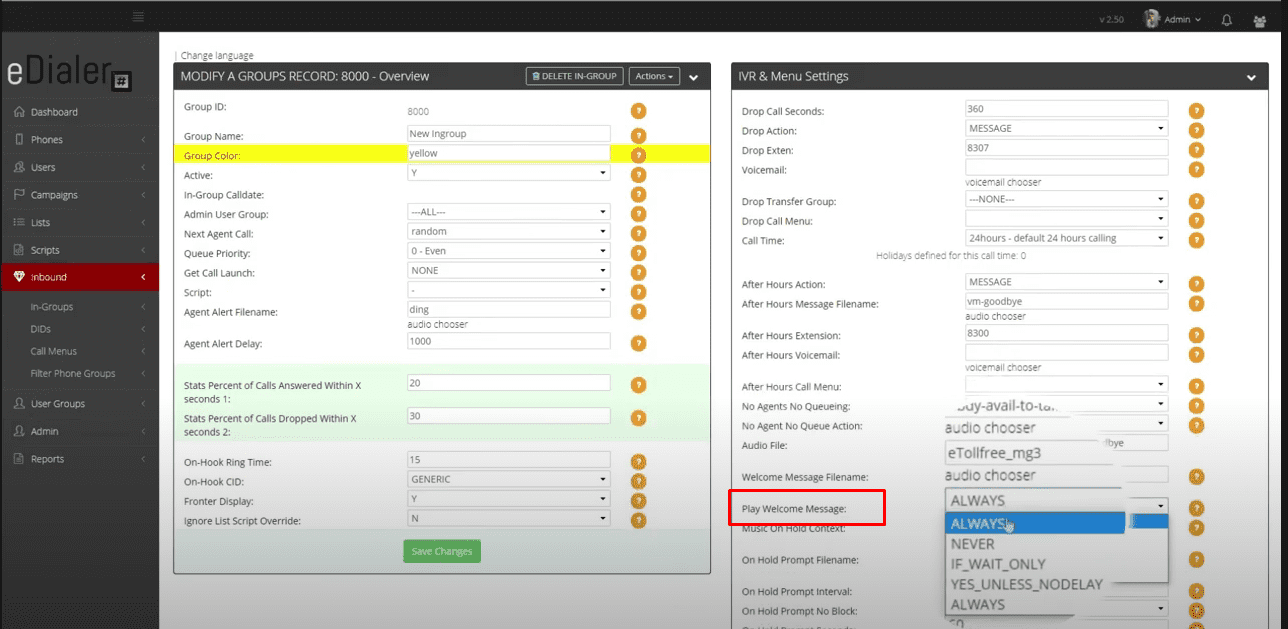
The default setting is Always, which means the welcome message will play every time a call is routed to this ingroup.
-
Click Save Changes to apply your settings.
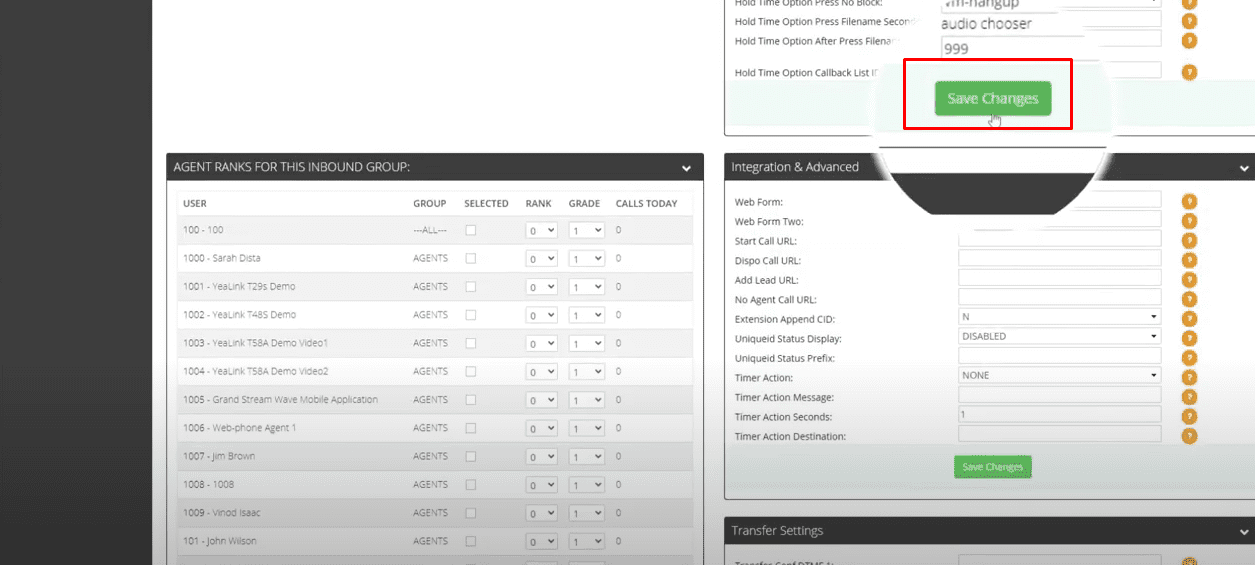
Your ingroup welcome message is now configured and will play automatically for incoming calls according to the option you selected.
Need help? Call our support team at 866-273-4639 or reach sales at 1 (800) 233-0234.